Select Changed Presets
Use this workflow when you have edited only part of a setlist and do not want to remeasure everything.
MatchPatch compares your current setlist to an older version and keeps only
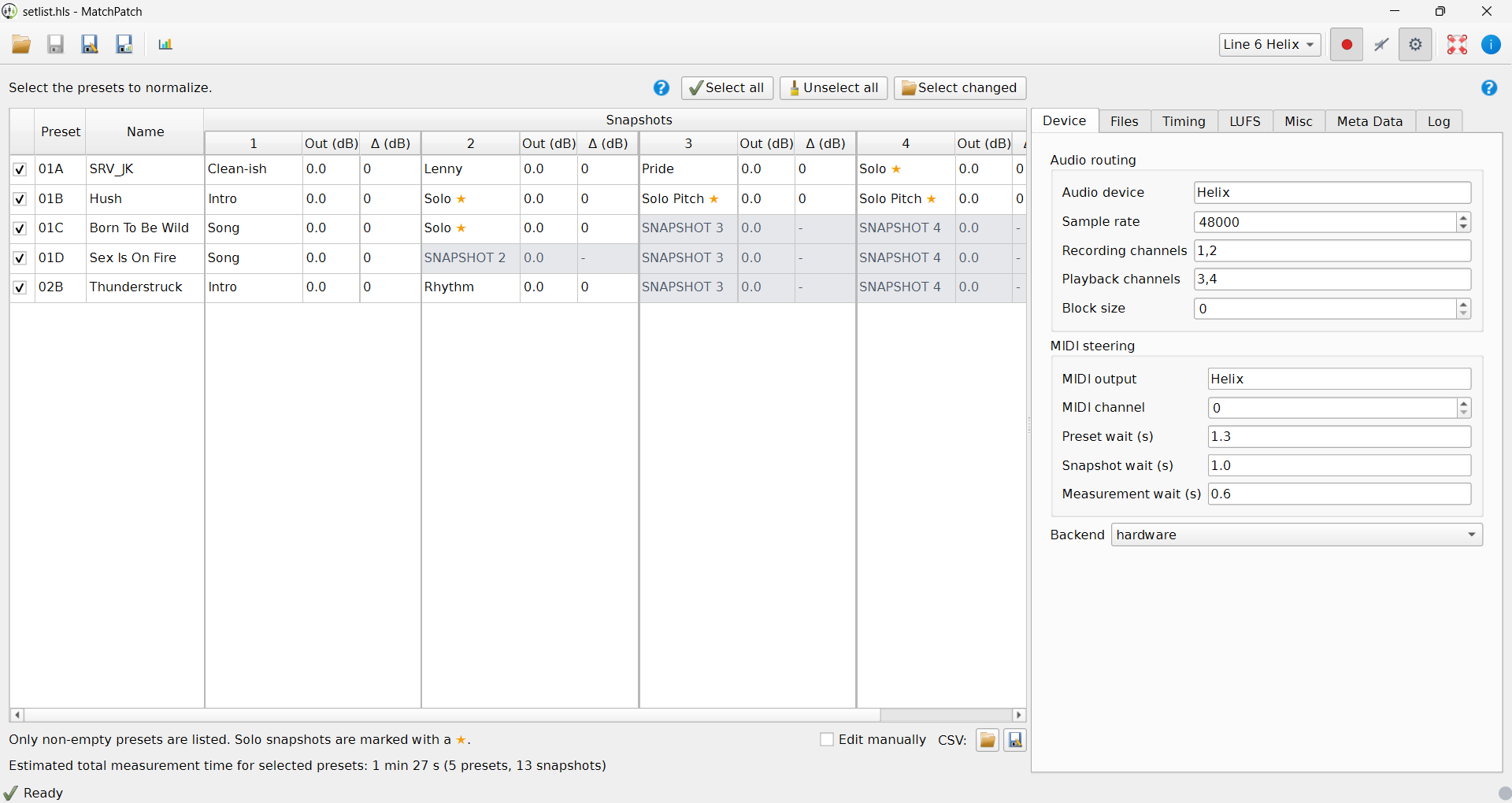
changed snapshots measurable. Unchanged snapshots are grey and marked with the
C ignore icon.
Before You Start
Have the current
.hlsor.pgssetlist.Have the previous
.hlsor.pgssetlist.Make sure both files are versions of the same setlist.
Back up the current file.
Warning: This workflow is for
.hlsand.pgssetlists. It is not for single-preset files.
Steps
Open MatchPatch.
Open the current
.hlsor.pgssetlist.Click Select changed.
Choose the previous setlist for the same device family.
Review which snapshots are still measurable.
Manually check or uncheck presets if needed.
Run normalization.
What Counts As Changed?
The goal is to find snapshots whose sound changed. Renamed presets and renamed snapshots may not count as changed if the tone itself is the same.
If a preset’s block layout or non-snapshot parameters changed, MatchPatch keeps all snapshots in that preset measurable. Otherwise it compares each snapshot’s parameter assignments independently.
This is useful after rehearsal when you changed a few tones but kept most of the setlist untouched.
If No Snapshots Are Measurable
If no snapshots are measurable:
you may have chosen the wrong previous file;
the setlist may not have changed in a way MatchPatch needs to measure;
the changes may only be names or other non-sound details.
You can still select presets manually.
What Success Looks Like
Changed snapshots remain normal table cells.
Unchanged snapshots are grey and show the
Cignore icon.Preset checkboxes still let you exclude whole presets.
Normalization runs on the smaller selection.
If Something Goes Wrong
If no presets are selected, confirm you chose the correct previous setlist.
If the file is rejected, confirm both files are the same supported setlist type.
If the selected presets look wrong, adjust the checkboxes manually.
If you are unsure, run Normalize A Setlist with a manual preset selection.
Warning: Use the previous version of the same setlist, not a different bank of songs.
See also: Normalize A Setlist.