Optimize Timing
Use this workflow when hardware measurements are unstable or when you want MatchPatch to find faster reliable timing values.
Timing controls how long MatchPatch waits around preset changes, snapshot changes, and audio recording.
See also: Measurement Timing.
When To Use This
Use Determine optimal parameters when:
repeated measurements do not agree;
presets have long delay or reverb trails;
the processor seems slow to switch;
Fast timing gives suspicious results;
you want shorter timing without guessing.
Before You Start
Open a setlist or preset.
Select at least one preset that can be measured.
Check the Reference DI.
If using hardware mode, connect and prepare the processor.
If using a single preset file, enter the temporary preset slot.
Warning: Parameter studies can take time. Let the run finish unless you need to abort.
Steps
Open Advanced.
Go to the Timing tab.
Click Determine optimal parameters.
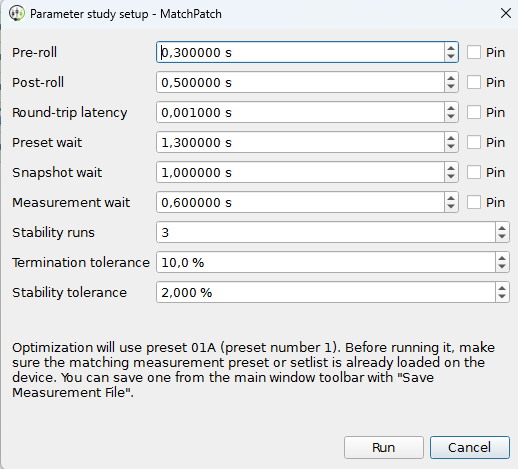
Review the setup dialog.
Adjust starting values if needed.
Pin any value you do not want MatchPatch to change.
Set stability runs and tolerances if needed.
Click Run.
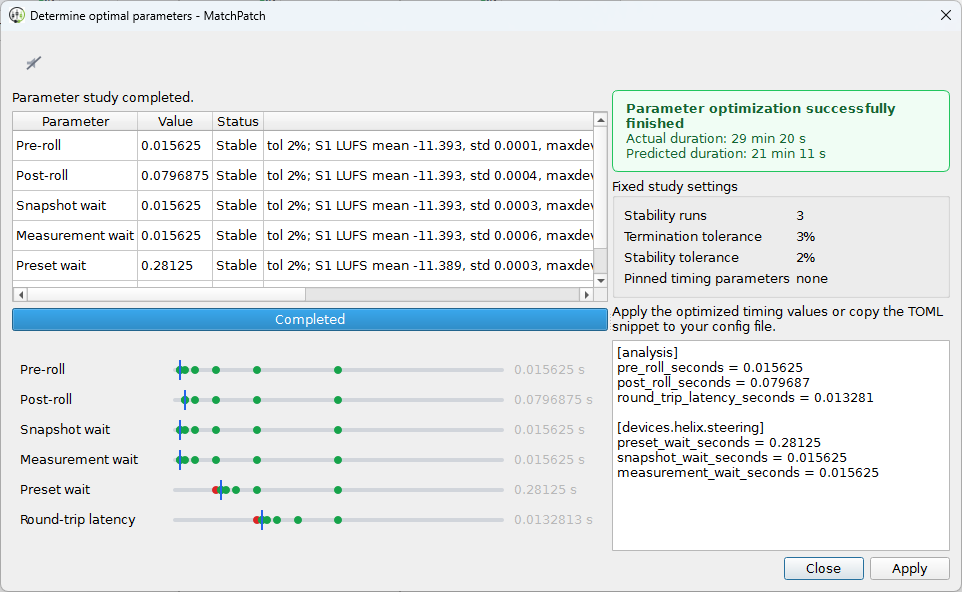
Watch the parameter study window.
When the result appears, click Apply.
Confirm the Timing tab values have changed.
Run normalization with the new timing.
What Pin Means
Pin means “keep this value as it is.” MatchPatch skips optimizing pinned values.
Use Pin when you already know a value is correct or you do not want it shortened.
Stability Runs
Stability runs are repeated checks. More runs give more confidence but take longer.
Use the default first unless you are chasing a difficult measurement problem.
Tolerances
Tolerances decide how close repeated measurements must be to count as stable.
Smaller tolerances are stricter. Stricter settings can take longer or fail more often.
Stable And Unstable
Stable means the measurement repeated closely enough.
Unstable means the measurement changed too much. This often means the timing is too fast, trails are still ringing, or routing/playback is not steady.
Runtime Estimate
The optimization dialog shows an estimated worst-case runtime. The real time can be shorter, but use the estimate to decide whether this is a good moment to run the study.
What Success Looks Like
The study finishes.
The result text appears.
Apply is enabled.
Clicking Apply updates timing values in the GUI.
A new normalization run is more stable.
Warning: Do not use very fast timing with long delay or reverb trails unless you have tested it.
If the study fails, see Troubleshooting.